An Oldie but a Goodie

Here is a photo that I took a few years ago (June, 2008, to be specific) of my friend Elsa as part of a series of art for her upcoming album. Elsa wanted an “ethereal” feel and dressed accordingly. After taking a few in the garden and another few under a tree (with a lamb!) we saw that the sky was rapidly darkening. As the clouds rolled in and claps of thunder were heard in the distance I made the snap decision for us to hop over the fence an up into the field.2549214861_b348e08ffe_oWe had two lights with us, Vivitar 285HV, and cheapo ebay triggers for firing them. I set them up in a simple arrangement with the main light at camera right and the other at camera left to act as a rim. This second light can be seen at the left of the frame. I set the camera (K10D) to manual, 1/80s, f/6.3, ISO 160 to get the ambient exposure how I wanted it (1/2-1 stops underexposed) and adjusted the flashes to either 1/2 or full power. The lens, a Pentax DA 16-45/4 was zoomed out to 16mm.

A few quick snaps later and we were happy… and just in time, because as soon as we packed up the skies opened up and it rained like you wouldn’t believe!

Thoughts?

The Making of a Scary Basement Photos – Part 2 (Editing)

I’d like to follow up my previous post with a more detailed explanation of how I pieced the composite image together and achieved the final look. Certain aspects of Photoshop, or photo editing in general, may seem like black art but in this case the process is fairly straightforward. I use two common image editing programs:

  • Adobe Photoshop Lightroom 4 (currently at v4.3)
  • Adobe Photoshop CS5

As I mentioned in the last post I started the process of taking this image with the final product in mind, simplifying the editing process considerably.

DSC_9718-Edit-5The first step, as in all my post-production, was to import the images into Lightroom. For those who don’t know, Lightroom is an extremely versatile program that provides a near-complete workflow from import, sort, edit, print, upload plus simple tools for generating slide shows, webpages and books. I do 95% of my editing in Lightroom and usually only go to Photoshop for complicated edits like cloning and healing or anything where layers are required.

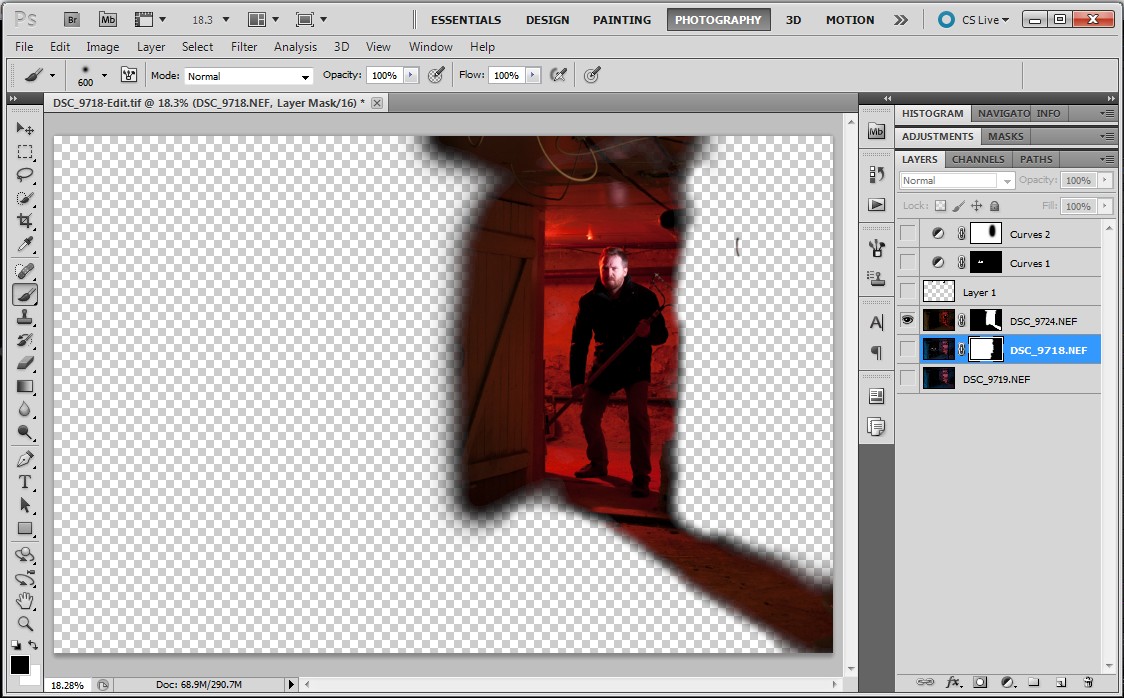
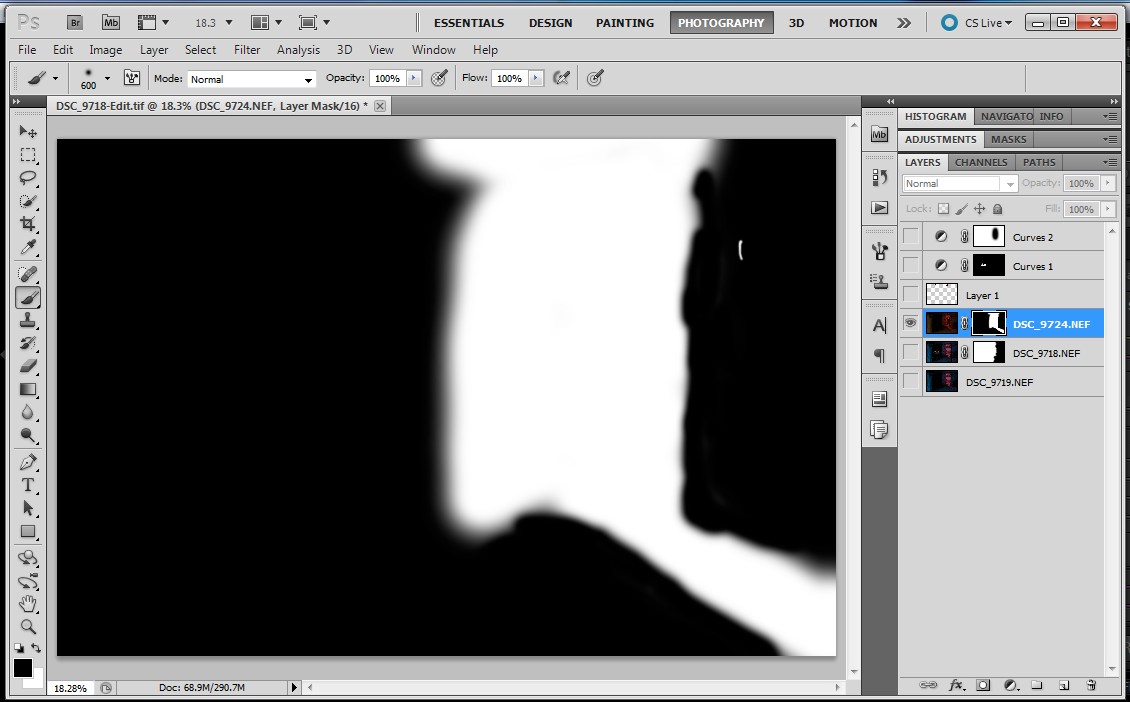
ScreenHunter_02 Jan. 11 16.42With the image of the blue room I adjusted the levels to get the brightness/contrast I wanted. I tuned the blue colour of the room with a white balance adjustment and the hue/saturation/luminance controls. I also used this control to reduce the red and orange saturation on my face.ScreenHunter_03 Jan. 11 16.44If you recall from the previous post I took a second image of the blue room with the snooted flash removed. I copied all of the adjustments from above over to this image. With the red room, I made minimal adjustments. I tweaked the white balance and increased saturation. I added some blacks to increase contrast.ScreenHunter_04 Jan. 11 16.46When finished in Lightroom I opened the three images as layers in a single Photoshop file in the following order: empty blue room > blue room with me > red room. I selected the three layers and used the Auto-Align Layers tool (in Automatic mode) to remove any misalignment from slight camera movements between shots. ScreenHunter_06 Jan. 11 16.52I masked off the right side of the “blue me” layer (to allow the underlying empty room to come through). The first image below is the resulting layer and the second image is the mask used to create it.ScreenHunter_05 Jan. 11 16.51ScreenHunter_08 Jan. 11 16.52The red room required a more complex mask to keep the red on the door and floor but not spill onto the door frame on the right side.ScreenHunter_09 Jan. 11 16.53 ScreenHunter_10 Jan. 11 16.53The three layers, when all visible, appear like this:ScreenHunter_10 Jan. 11 16.54My next step was to remove blemishes such as the smoke alarm in the blue room and some messy cables. For this I created a new layer above the three image layers. I set the healing brush and clone stamp tools to sample from all layers below. The edits appeared in the new layer, leaving the underlying layers untouched. This method makes the removal of healing/cloning edits much simpler because they can be deleted from the self-contained layer. Here is the layer containing the edits.ScreenHunter_11 Jan. 11 16.54As a final adjustment I added a curves adjustment, again as a new layer but masked off the red room.ScreenHunter_11 Jan. 11 16.55Here is the final image in Photoshop:ScreenHunter_12 Jan. 11 16.56Finally, I opened the image up in Lightroom and cropped on a slight angle to add a bit of drama.DSC_9718-Edit-5Thanks for reading!

The Making of a Scary Basement Photo

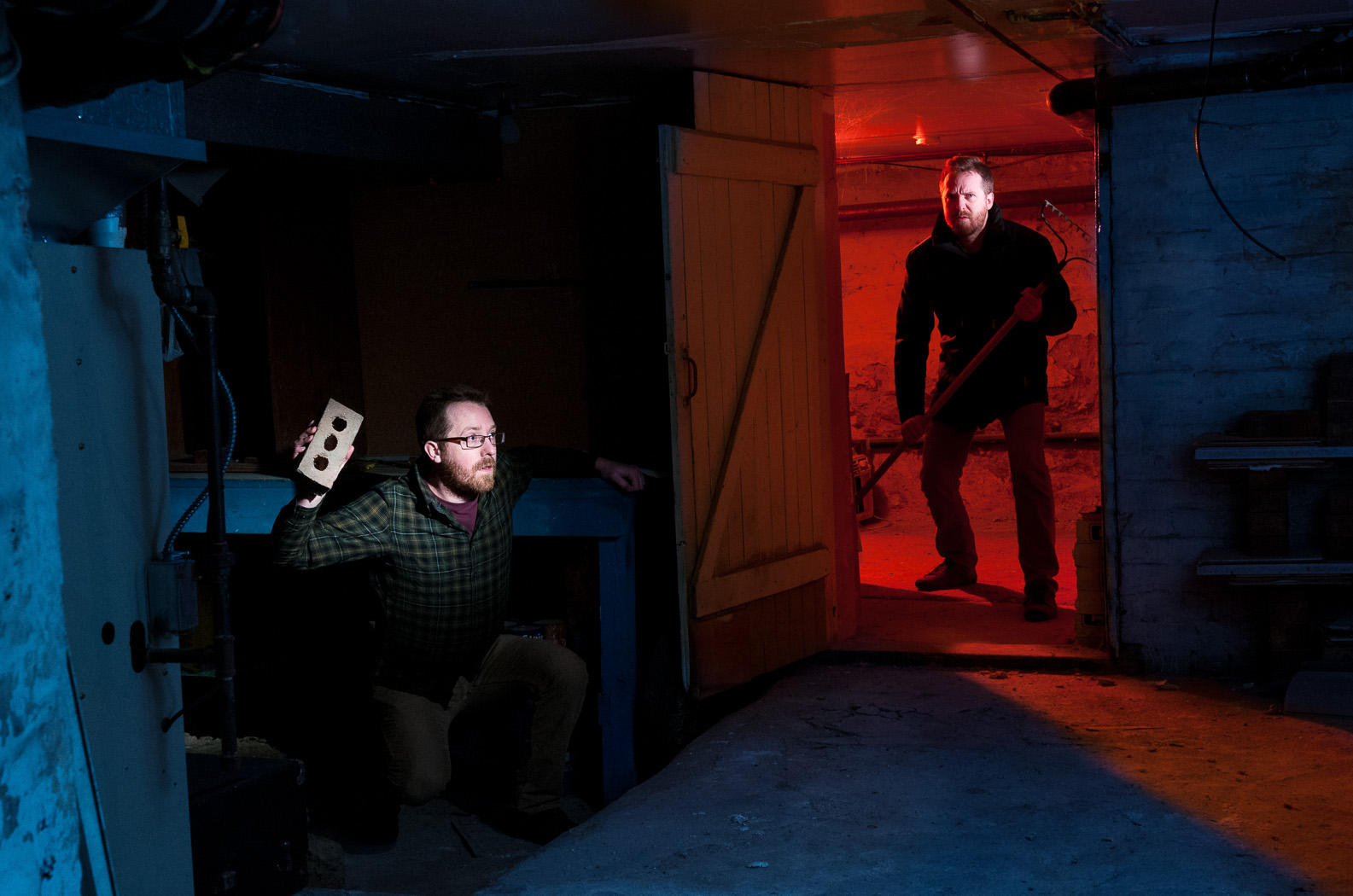
Here is my attempt at a “scary” basement photo… and double self portrait. In this post I’ll explain how I put it all together.
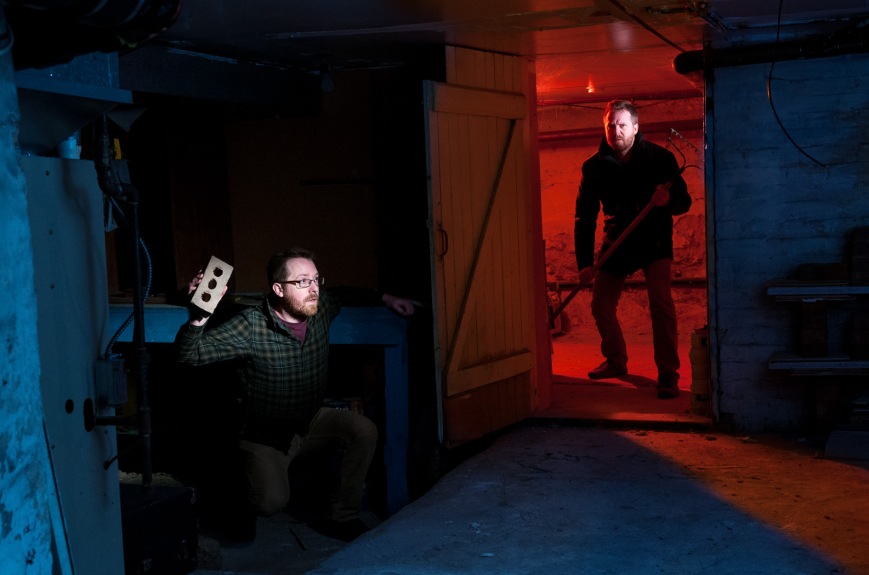
DSC_9718-Edit-5I’d been wanting to take a photo in my apartment’s basement for a while and was finally awarded some spare time this past week. I decided to do make the image over two nights, the first for setting up the lighting and the second for the final shots. This method gave me the time I needed to work out the lighting logistics without the stress of having to produce a result immediately. Another aspect to this image, one that is rare for me, is that I had the overall scene worked out in my head days before I actually went about doing it. I knew in advance that this would have to be a composite to include two versions of myself.

Not being someone who takes many photos with complicated lighting setups, I am limited in the equipment I have and this presented a few hurdles to overcome. Most importantly, while I own enough flashes (shoe mount and studio), I don’t have sufficient means to trigger them. I’ll get into this later.

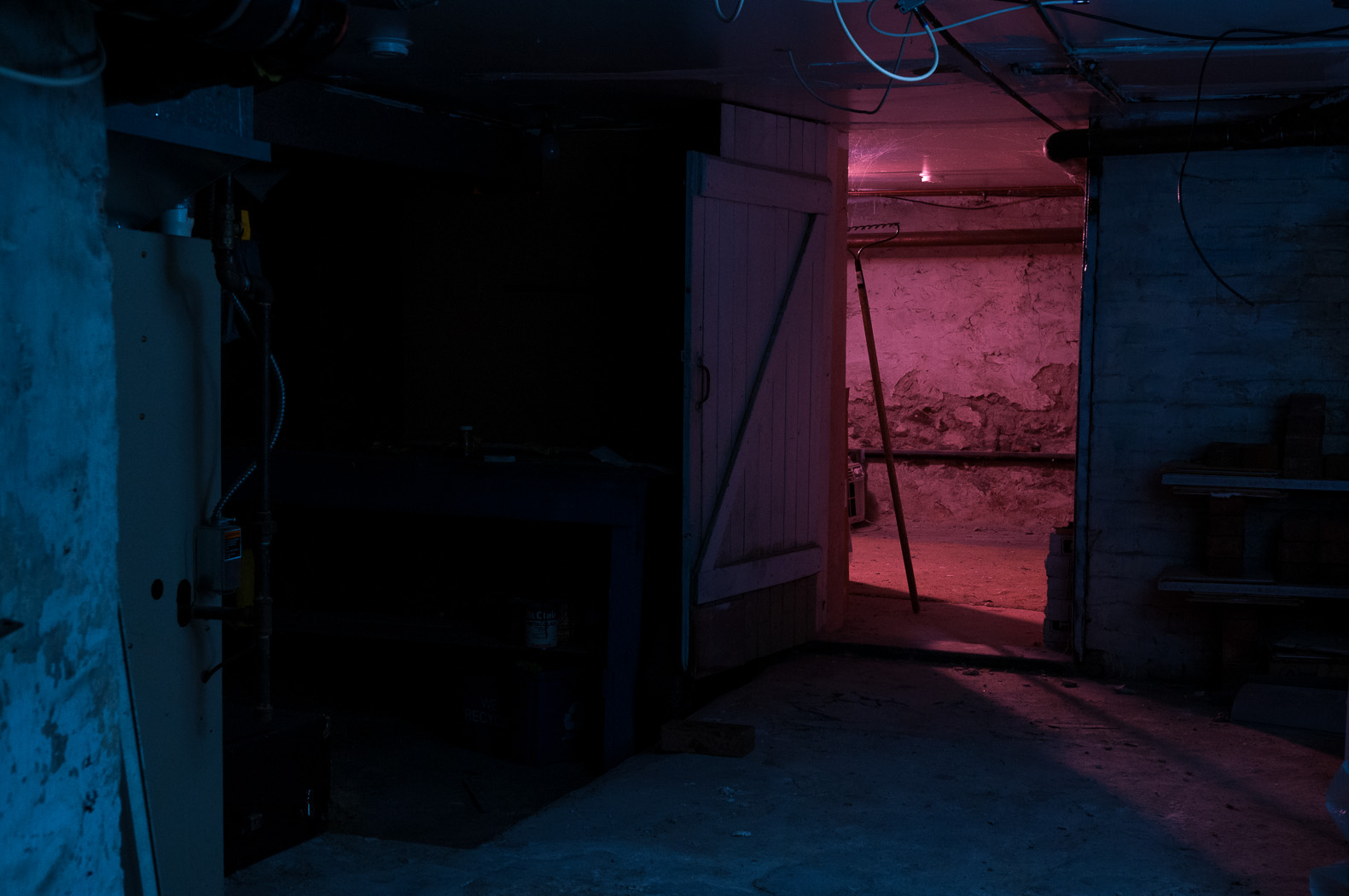
Let’s start with the scene without any lighting. The basement is divided into three rooms and is creepy on its own.DSC_9668
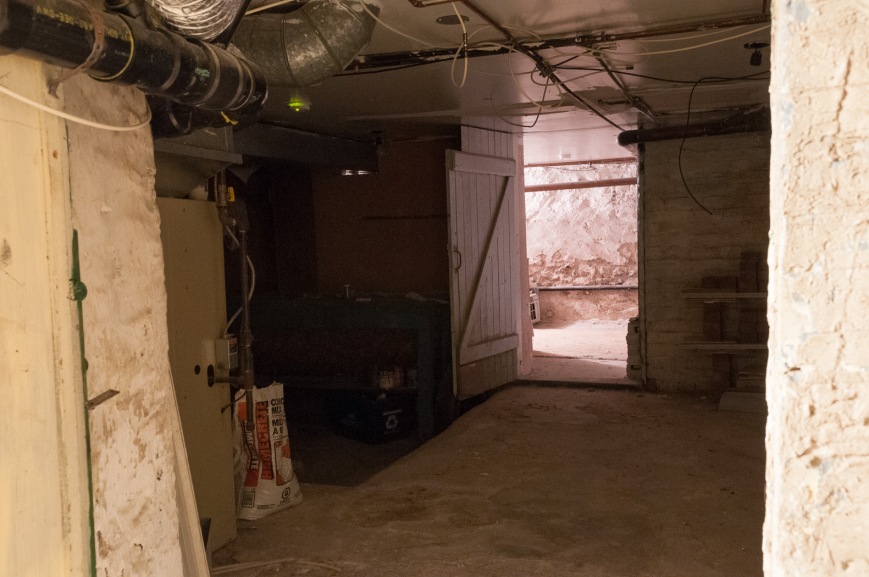
To start, I put the D300s on a tripod with the AF-S 17-55mm f/2.8 set to f/8, 1/160s, ISO 400. I marked the leg locations on the floor with tape because I knew I’d have to move the tripod away from the doorway overnight.

I lit the back room in red first using a Nikon SB-700 with a red gel. I added a diffuser cap, zoomed the flash out to 14mm and set it to 1/2 power to fill the room with red. I positioned the flash behind my right shoulder to give some rim light and as a fortunate consequence it projected a nice red spill onto the floor of the main room.

To make ‘evil me’ stand out I added a Nikon SB-900 with a light purple gel. I used a grid spot to keep the light on my face and not spill onto the ceiling or door frame. I kept the power at a low level of 1/16. I positioned the head of the rake within the spill of the gridded light to separate it from the red wash.DSC_9724I took the red room image with white balance set to Flash. For the main room, I wanted to have an overall blue feel to the fill. I pointed an Alien Bees B800 studio strobe into the inside corner of the room and set the camera’s white balance to Tungsten to turn the flash’s white output blue (an alternate approach would have been adding a blue gel to the flash and since making this photo I’ve picked up some gels to fit the Alien Bees’ 7′ reflectors, including a 1/2 CT blue).
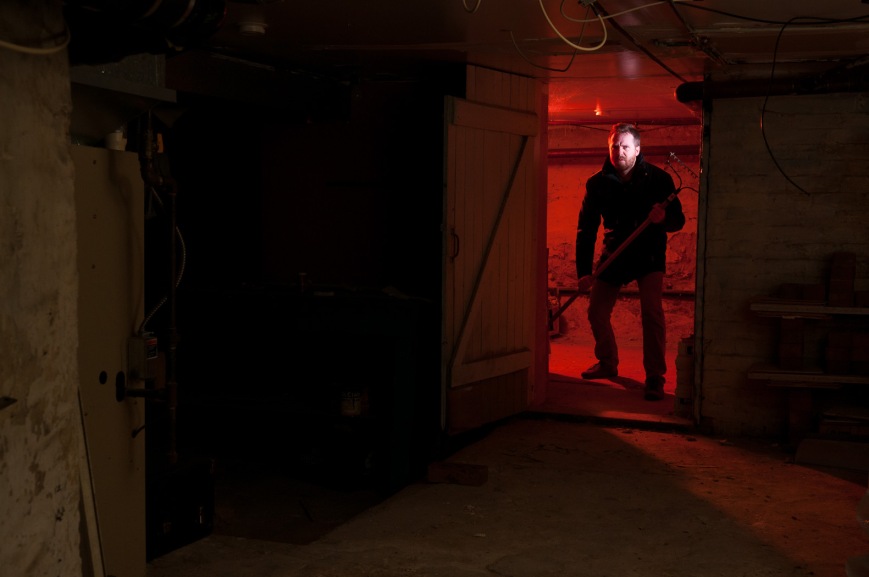
I lit ‘scared me’ with a snooted Metz 48 AF-1 at 1/8 power. I added a full CTO (orange) gel that, when combined with the Tungsten white balance on the camera, gave white light. The snoot was aimed to light just my upper body and the brick.DSC_9718In order to get the right coverage from the snooted flash I had to place it right in the middle of the frame. Another image, this time with the snooted flash removed, gave me the a clear view of that area.DSC_9719Here is the lighting diagram of the three images:
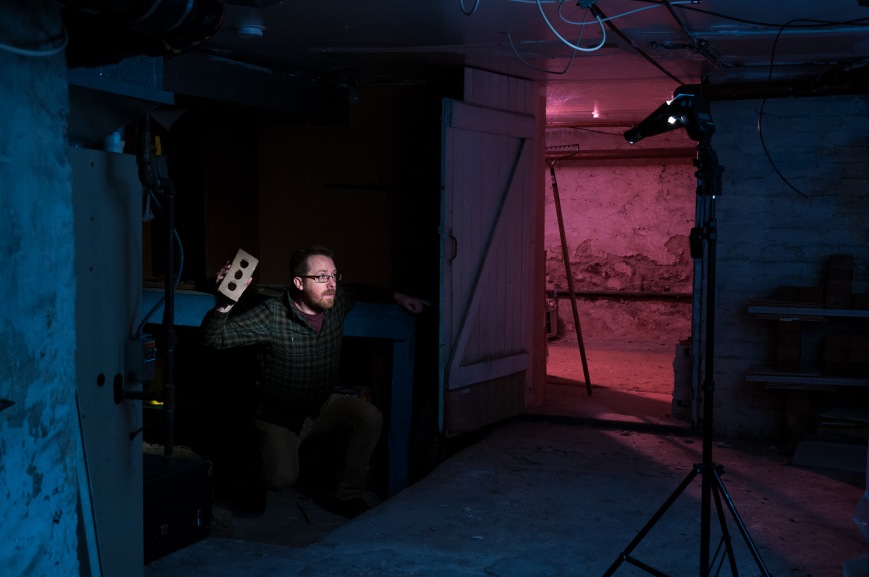
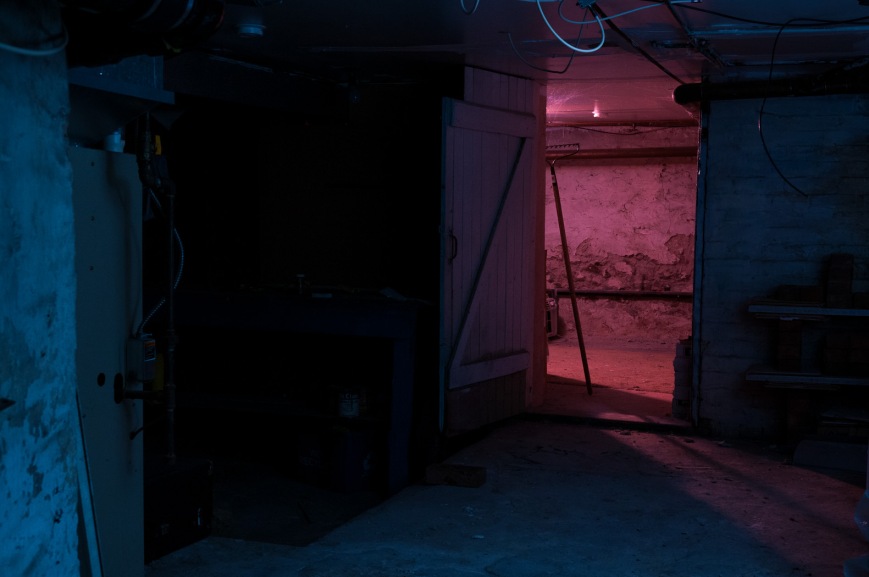
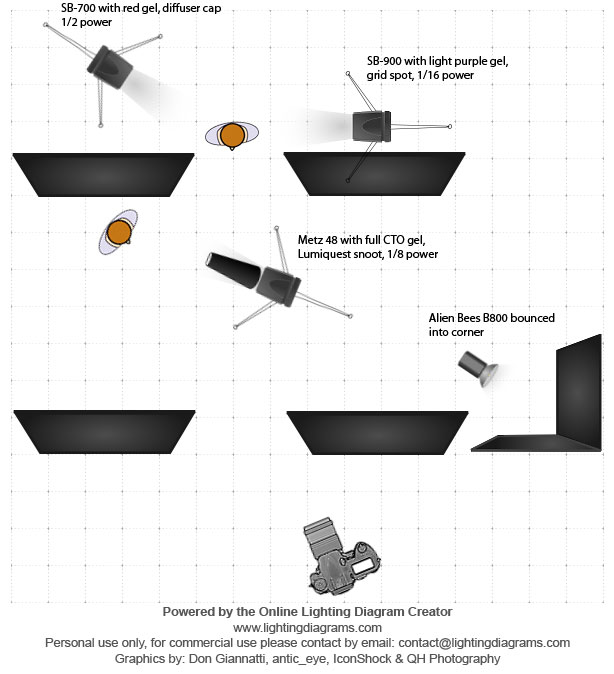
lighting-diagram-scary-basement For triggering the flashes, I had to think carefully. Three of these four flashes have optical slaves. Only two of them have connectors for wireless triggers. The Metz 48 AF-1 has neither (although since this shoot I updated the firmware to include optical slave). In the end put a wireless trigger (Cybersync) on a flash in each room and triggered the other two with their optical slaves. This made optical line of sight easy, as the two slaved flashes only had to see their nearby wirelessly triggered flashes.

I brought the three images into photoshop and masked out the unwanted areas. With some heal/clone work to remove unwanted wires and highlights and a final curves adjustment, the image was done!
Trying a New HDR Technique with 32-Bit TIFFs

Today I came across a new high dynamic range (HDR) technique that combines Photoshop’s HDR tool with a feature that was included in the Lightroom 4.1 update that I hadn’t noticed before: the ability to edit 32-bit TIFF images. As a first attempt I processed this image (from a walk on the Lake Erie shore at Fort Erie on Christmas Eve):

DSC_9164-Edit-2The process I used was:

  • I took a series of images (minimum three) with different exposures to capture the full dynamic range of the scene. Using a tripod is best although the HDR tool in Photoshop automatically aligns the images. For the images used to create the HDR above I shot handheld with autobracketing on the D7000 for -1, 0 and +1 EV exposure compensation.
  • In Lightroom 4.1 (or newer) I did some minor tweaking of the images to prepare them for the HDR tool. First I applied automatic distortion, vignette and chromatic aberration corrections for the 35mm f/1.8 DX. Next I changed the calibration profile from ‘Adobe Standard’ to ‘Camera Neutral’ in order to reduce the contrast. Finally I adjusted the exposure settings to ensure that the darkest image included the full range of tones in the highlights and the brightest image covered the full range of tones in the shadows. The images looked like this:

DSC_9164 DSC_9165 DSC_9166

  • I exported the three images to the HDR tool in Photoshop using the ‘Merge to HDR Pro in Photoshop’ command and saved the resulting combined image as a 32-bit image. Note that Lightroom cannot read 32-bit PSD files so it is best to configure Lightroom to export as a TIFF to Photoshop.
  • With the new 32-bit file back in Lightroom I could begin editing. At first glance, the image doesn’t seem to have any more information in it than before the HDR conversion but that is because all 32 bits of data can’t be displayed at once.  Instead, it is best to think of the file as a RAW with an enormous amount of information in the highlights and shadows. Pulling the Shadows slider all the way to +100 and the Highlights slider to -100 and a reduction of the Exposure slider to taste gives the following image. This is a good demonstration of the amount of data present, but not quite a final image. 32-bit Quick AdjustWith some further tweaking in Lightroom (exposure controls, curves, saturation/vibrance, sharpening) I got reached this point:

DSC_9164-ColourAt this point I wasn’t too happy with the banding in the sky… something I’ll have to figure out for future images. In the end I opted to convert to black and white for a darker feel.

DSC_9164-Black and WhiteAnd there it is, a simple HDR technique that doesn’t use any of the tone mapping features of common methods. I prefer this approach to those with tone mapping primarily because I have full control over the edit.

On the Walter Bean Trail with Mitzy

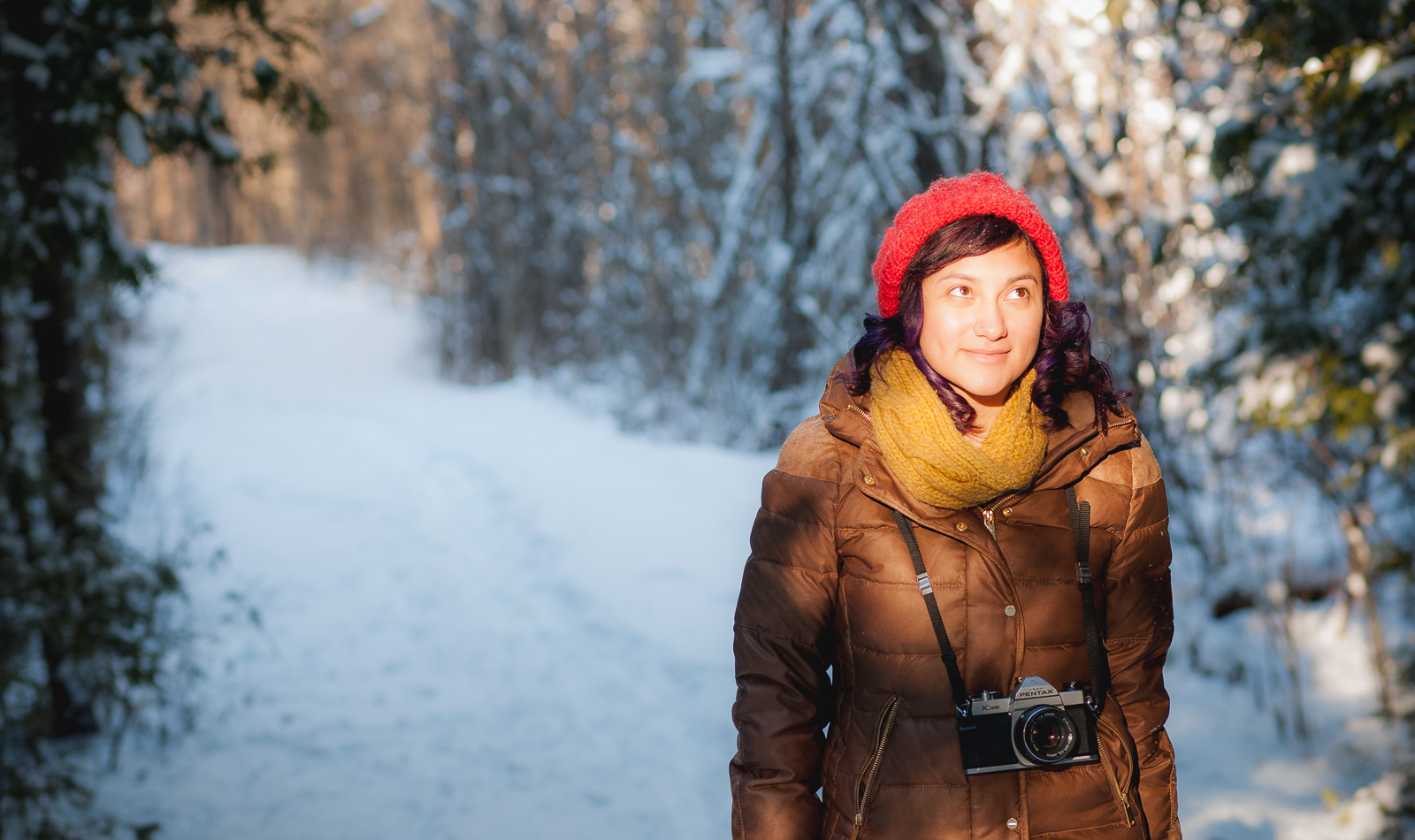
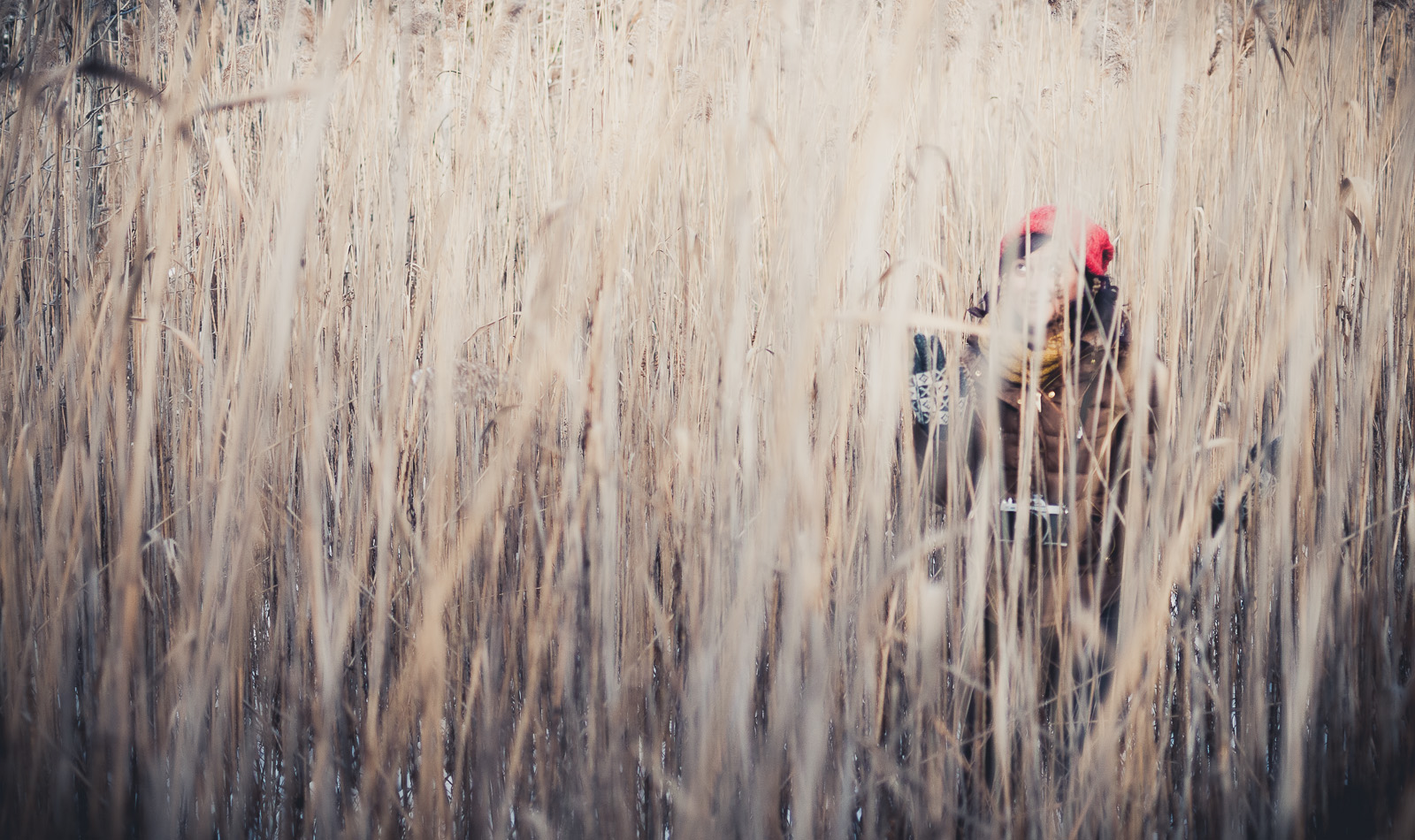
Mitzy and I went for a walk in the snow on the Walter Bean Trail last week. Despite being only 10 cm, it was still the biggest snowfall since March, 2011. Here are a couple of shots, both with cinematic crops that I feel work quite well.

First, one with the AF-S 85mm f1.8 G.  Mitzy was standing in a sunbeam poking through the trees. I’m finding this lens to have extremely accurate focus and wonderful subject separation. This is at f/4 and Mitzy still pops from the background. The bokeh is still great at f/4 as well. Unfortunately I overexposed her face, leading to some poor skin tones when I recovered the highlights.

DSC_9600Next is a manually focussed shot with the 35mm f/1.8 DX at f/1.8.

DSC_9623

Thanks for looking!

Mitzy with her Foxes in the Sumac

Here’s a shot from a couple months ago during a visit to my Dad’s in Inglewood, ON. I thought it would be a good image to try out some newly discovered retouch techniques. I’m sure at some point I’ll write about them.

Taken with the D300s and Sigma 50mm f/1.4 at f/2.5.

Rachel and Jeremy’s Victoria Park Pavilion Wedding

In early October I was fortunate to photograph the wedding of my good friend (and former roommate), Rachel, at the Pavillion in Kitchener’s Victoria Park. Rachel and Jeremy’s fun-loving personalities brought many unique elements to their wedding including adorable decorations, a crochet wedding cake and a live photo booth projected on the stage.

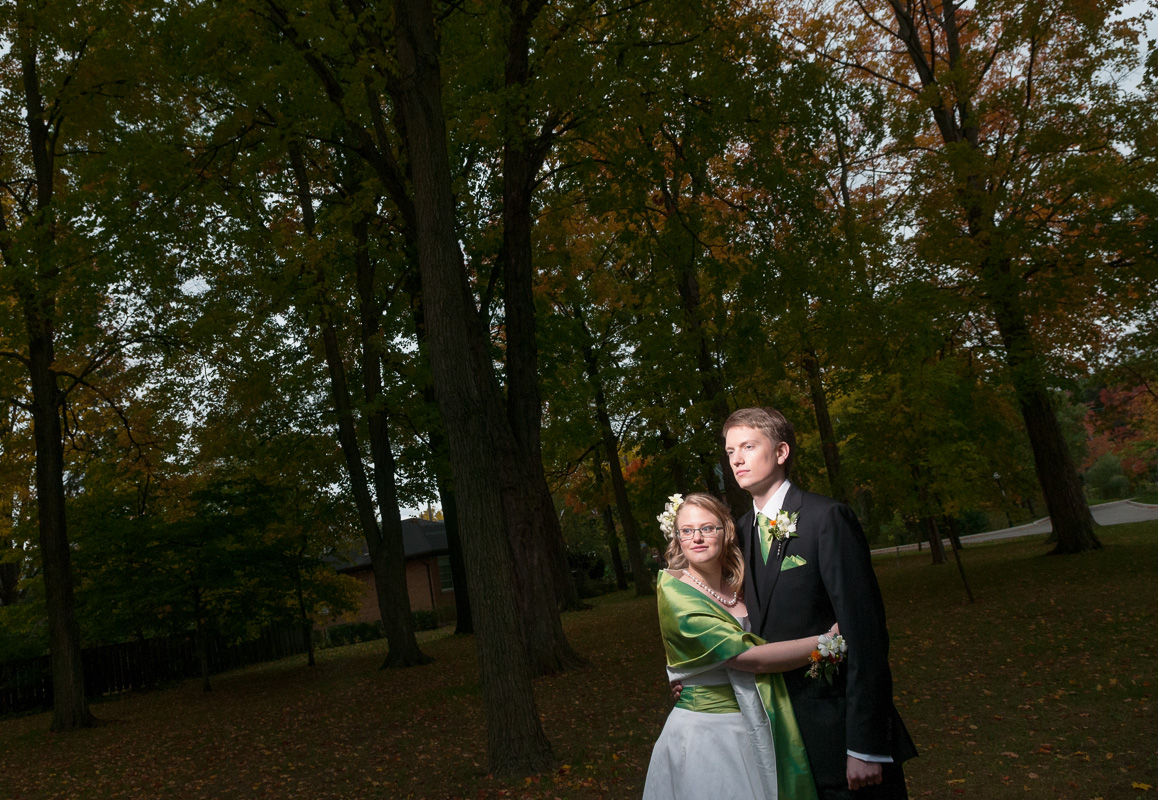
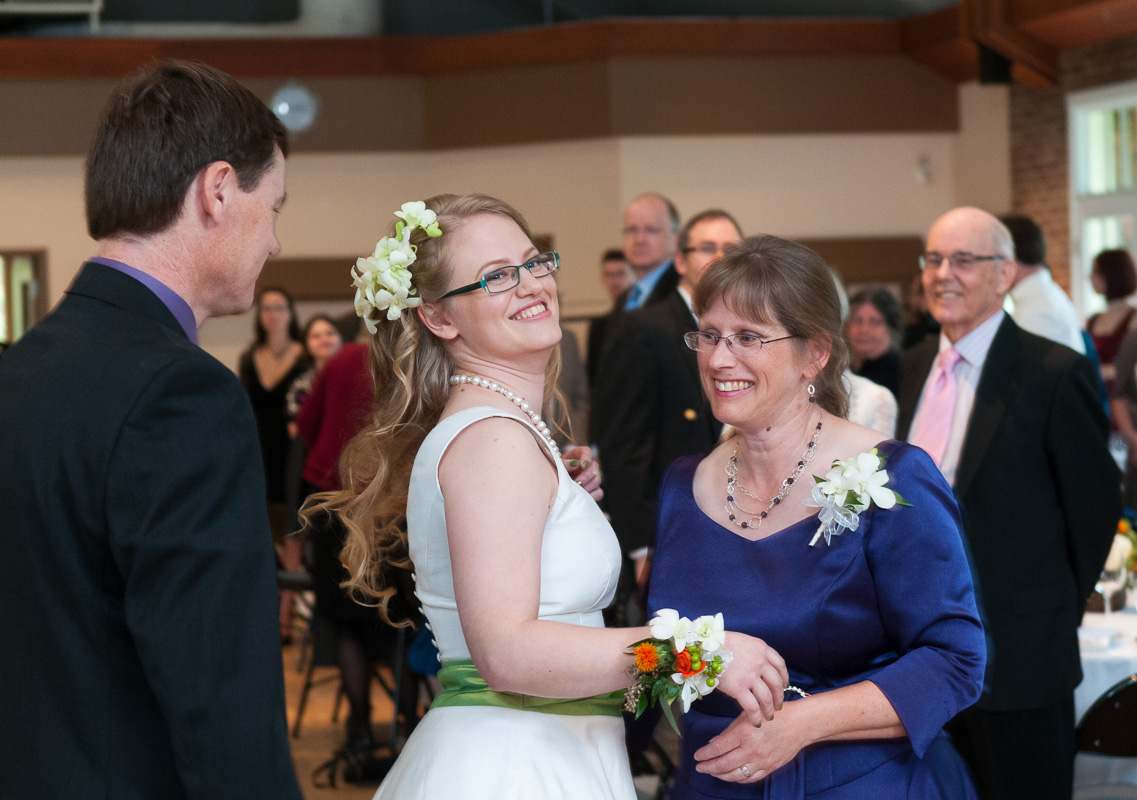
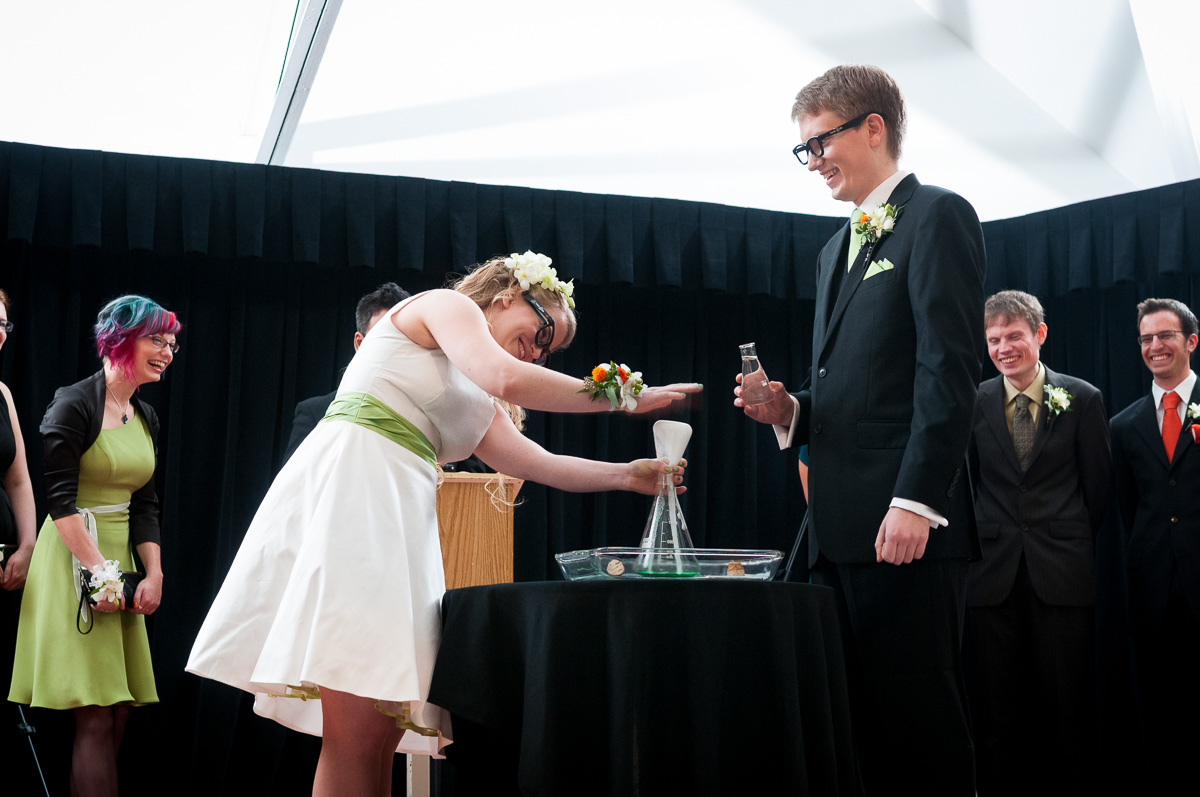
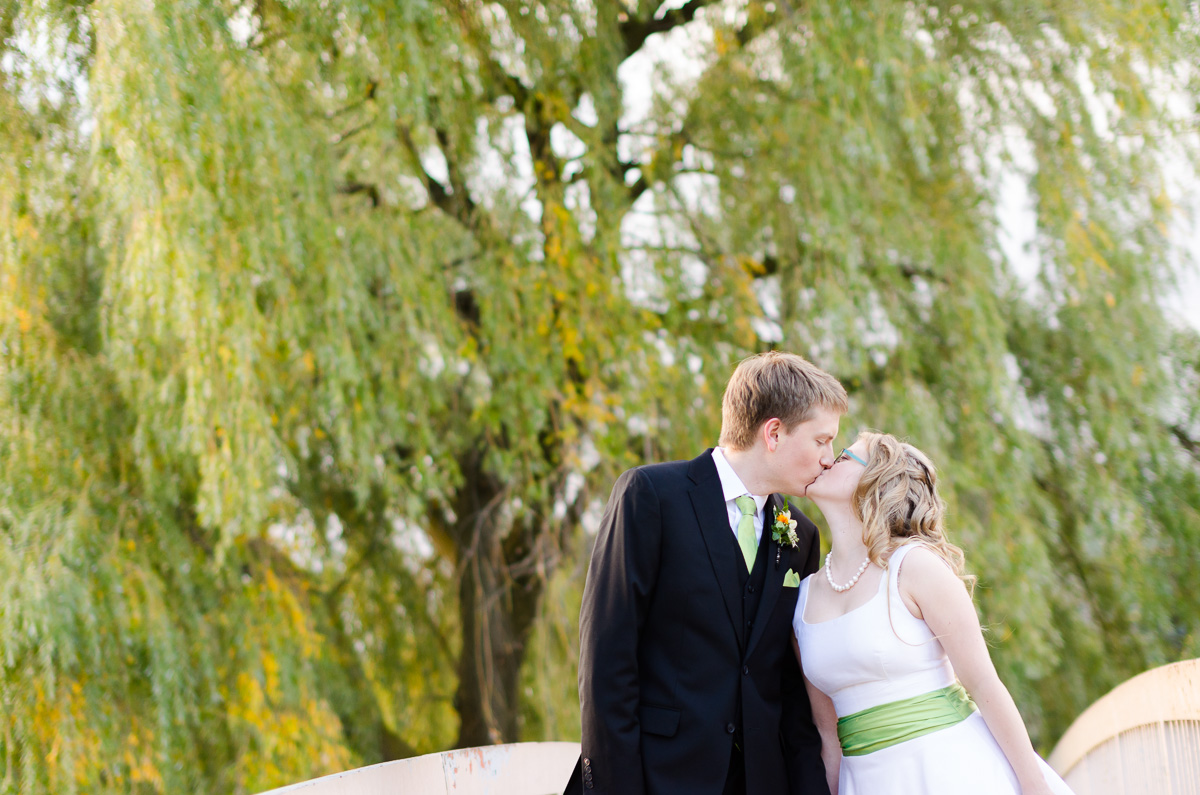
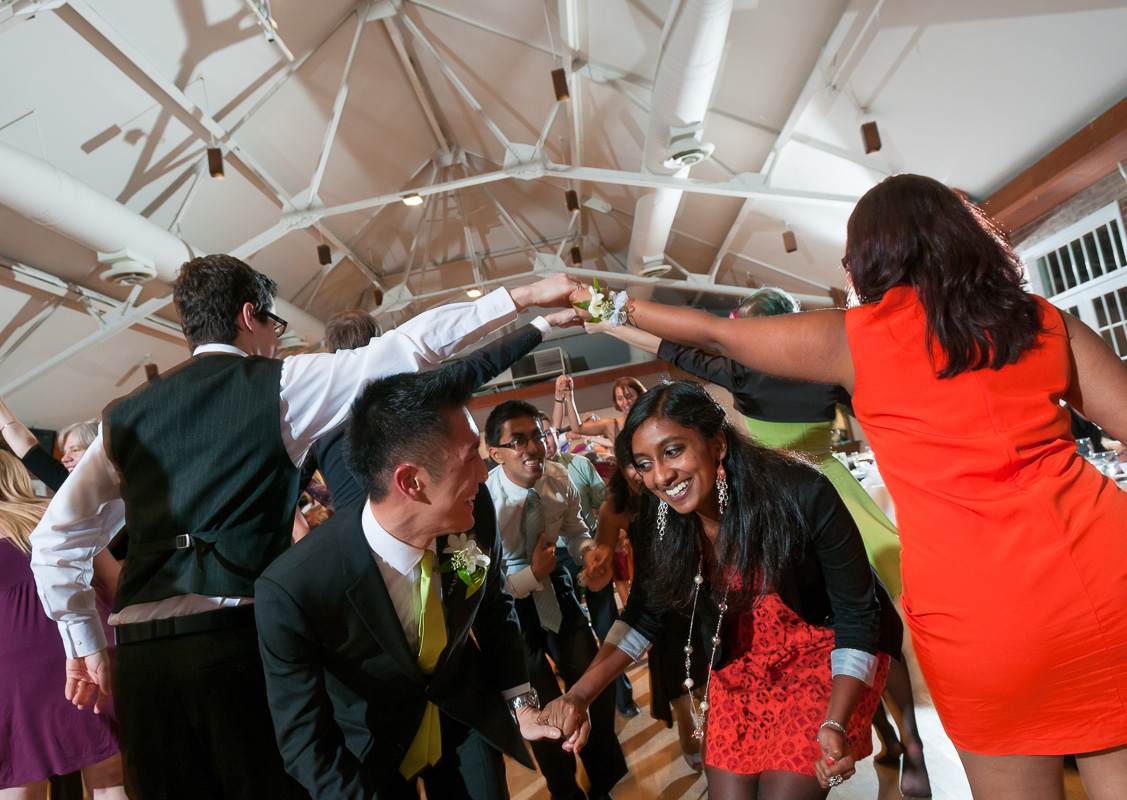
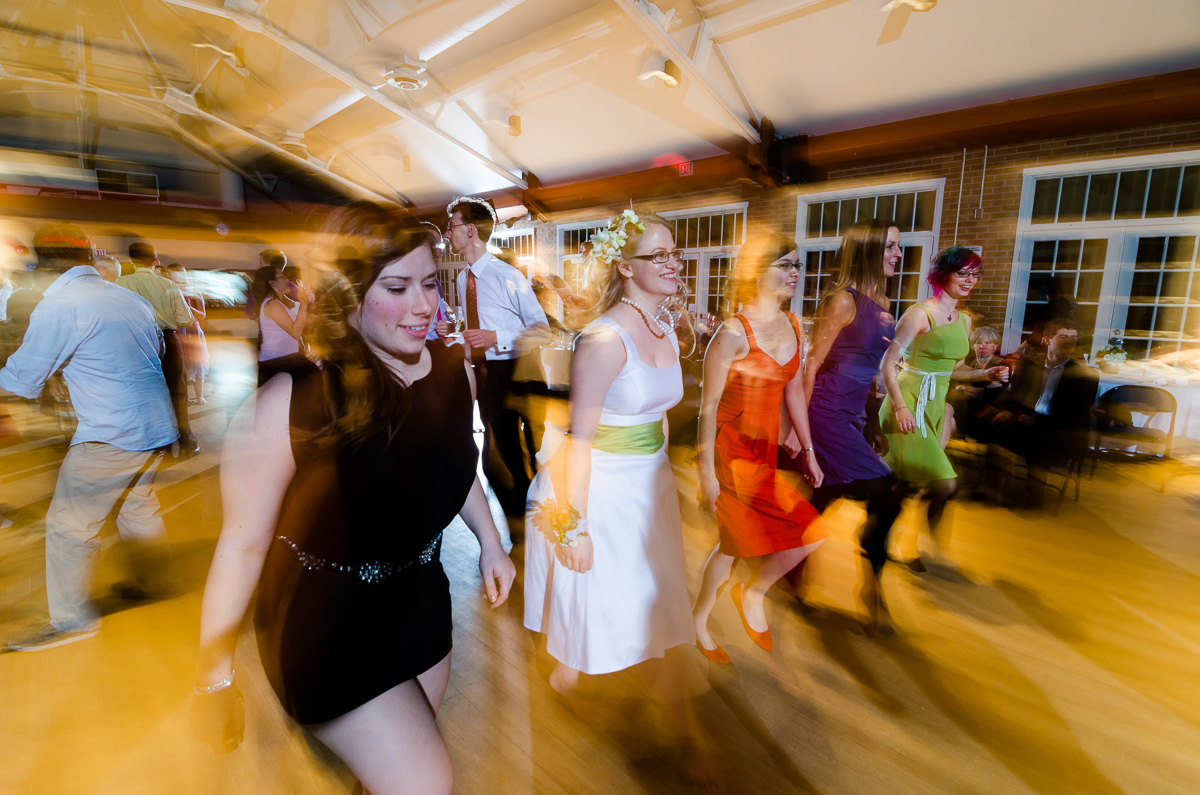
RachelandJeremy-331The ceremony began with a workout routine for the audience and included a science experiment (with safety glasses, of course), vows read by the audience and a fantastic victory lap at the end. Natural light on the stage was low, so I lit the ceremony with two Alien Bees AB800 lights bounced onto opposite sides of the vast ceiling. This setup provided enough light for the processional/recessional as well, making my job a lot easier!RachelandJeremy-166 RachelandJeremy-219 RachelandJeremy-244 RachelandJeremy-249I took the massive wedding party outside for a photo in front of the pavilion. Not having a ladder, I held the D300s with AF-S 17-55mm f/2.8 above my head and took a series of images at 17mm f/5.6 adjust the framing slightly for each shot. I learned this trick watching a newspaper photographer cover a large crowd scene with his D2h. He held the camera high up and shot at max frame rate while moving panning the camera up/down/left/right.RachelandJeremy-310Alone with the bride and groom (along with videographers and Mike Portt, who was assisting) I captured these images. The first is a panorama of many shots with the D7000 and Sigma 50/1.4 at f/1.4.RachelandJeremy-329The next are with the Sigma and a rented AF-S 24mm f/1.4, respectively. The weather was unfortunately cold and I felt bad keeping Rachel and Jeremy outside even for the short time that I did.RachelandJeremy-397 RachelandJeremy-392After portraits, I set up the Alien Bees again for lighting the rest of the evening. By placing one on the stage and the other high up at the back corner I was able to light the entire room. I think I’ll write a full blog post on this technique as it has worked well for me. The studio flashes run off AC power and recharge quickly, giving consistent and reliable output.RachelandJeremy-525Here is a shot of the crochet cake followed by the “cake cutting”. RachelandJeremy-436 RachelandJeremy-462For lighting many of the candids I used my new favourite technique of holding the camera in my right hand with something wide and an off-camera strobe in my left hand. Here, I put the Lumiquest Softbox LTz on an SB-900 set to be triggered in TTL with the camera’s built-in flash. The softbox at this range puts out even and soft light, sufficient for a pair of people.RachelandJeremy-597The dance party was started off with an amazing ceilidh that got nearly everybody on their feet. Using the Alien Bees to light the room and playing with shutter speed to control the ambient light I was able to achieve a wide range of looks, from frozen motion to slow speed sync.RachelandJeremy-556 RachelandJeremy-591I’ll end this post with the cutest gift card box I’ve ever seen. Rachel and Jeremy’s wedding was a real treat and I wish them the best! Thanks for reading.

RachelandJeremy-15

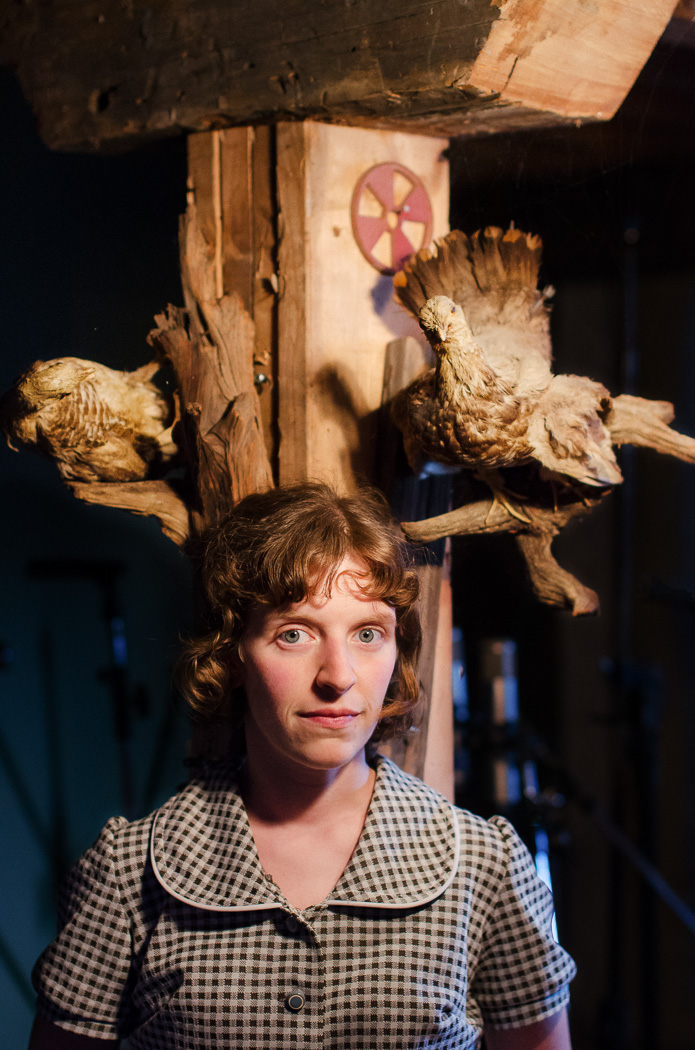
Jenny with Taxidermy

My friend Jenny (aka Jenny Omnichord) and I got together today to shoot a series of photos with her omnichord collection… now 11 strong. I’ve been taking photos of Jenny almost since the day I first got a DSLR and it’s always something I look forward to. Not only does Jenny collect omnichords, but she also has a petting zoo worth of taxidermy. In between omnichord photos and playing with her adorable kids, Otis and Arrow, we grabbed this shot.

D7000 at ISO 1250 + Sigma 50mm f/1.4 at f/2.2DSC_9123-Edit

Nikkor 85mm f/1.8 G Mini-Review

When I first switched from Pentax to Nikon two years ago I was excited to get my hands on the 85mm f/1.8 AF D as an affordable and compact fast portrait lens. In not too long I found a perfectly used copy on Kijiji and picked it up on a sunny Autumn Saturday. While I liked the lens overall, I didn’t LOVE it. I found the colour to be poor, high chromatic aberrations (specifically longitudinal aberrations, aka bokeh fringing) and susceptibility to flare. The straight-edged aperture blades meant that stopping down gave poor bokeh. Wide open I wasn’t fan of the bokeh either. The screw-driven autofocus, while fast, lacked the accuracy of AF-S. In the end I sold it.

This past weekend I picked up it’s replacement, the 85mm f/1.8 AF-S G. So, what does the updated lens get me?

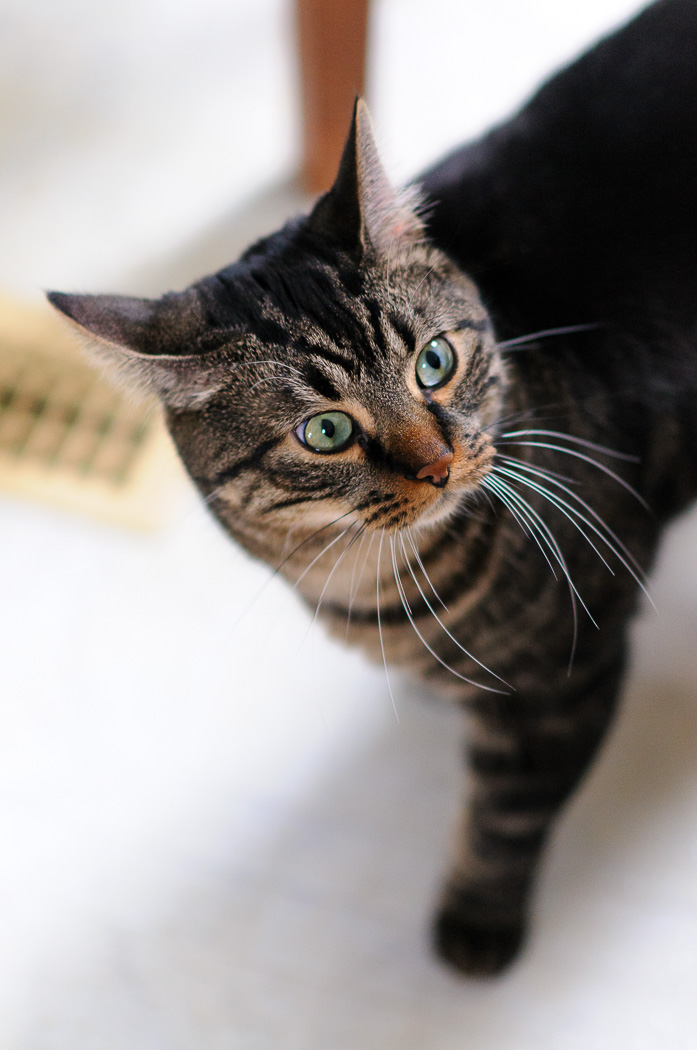
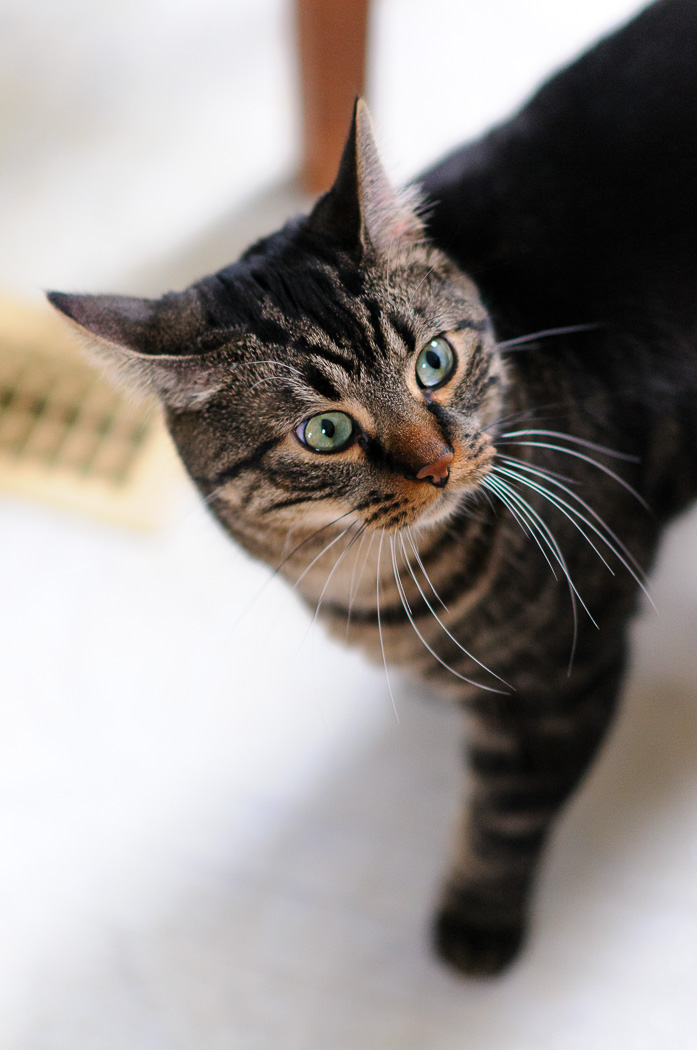
Sharpness. Online tests have shown this lens to be extremely sharp. Photozone measures the G version to be as sharp at f/1.8 as the D is at f/2.8. In fact, the edges of the D lens don’t match the G’s edges at f/1.8 until f/4. After a week with the lens I concur. It’s consistently sharp at every aperture. Now as I’ll show later, aberrations and low depth of field do reduce the apparent sharpness at wide apertures. Below are a couple of images of the cat at f/1.8 indoors at ISO 800.

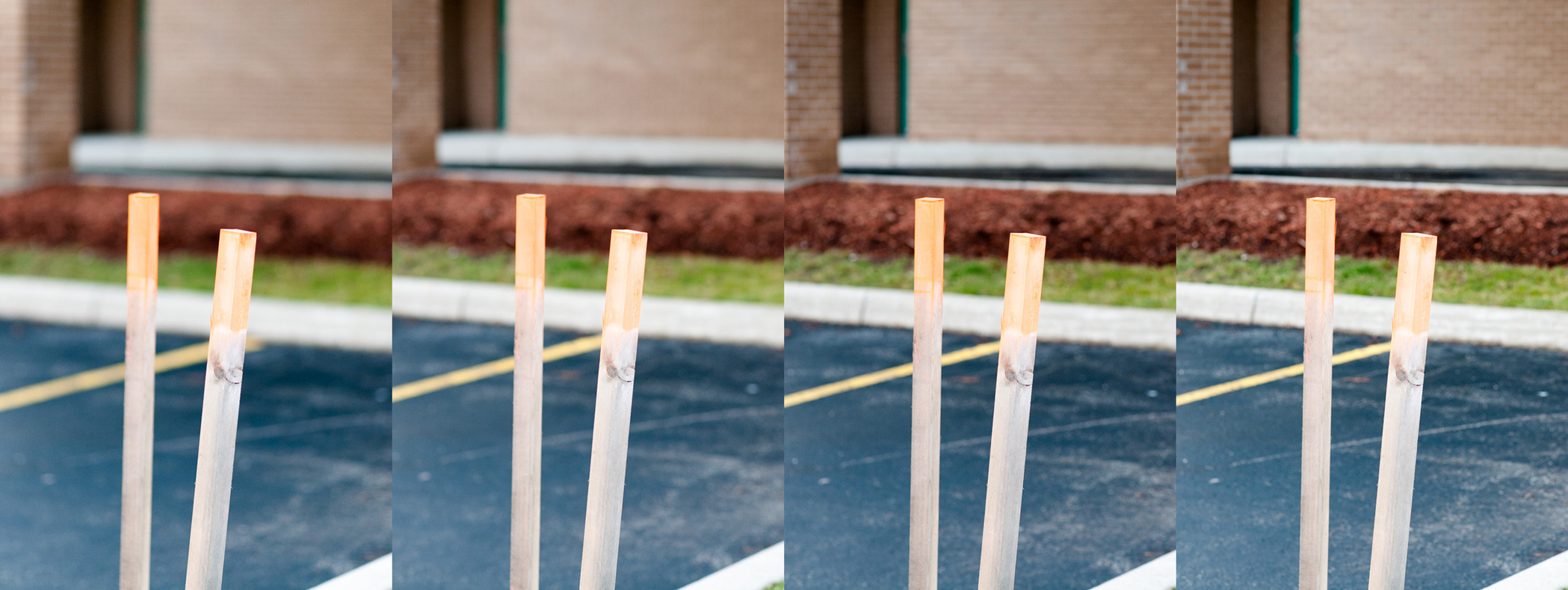
DSC_9307DSC_9312As you can see above, the bokeh is also quite nice. Here is a comparison of the same scene at different apertures (from left to right: f/1.8, f/2.8, f/4, f/5.6).

bokehThe only negative aspect of this lens that I’ve come across so far is bokeh fringing. In fact, I don’t see it as any better over the D version. The image below, at f/1.8, shows the purple and green colours that appear in either side of the focal plane.

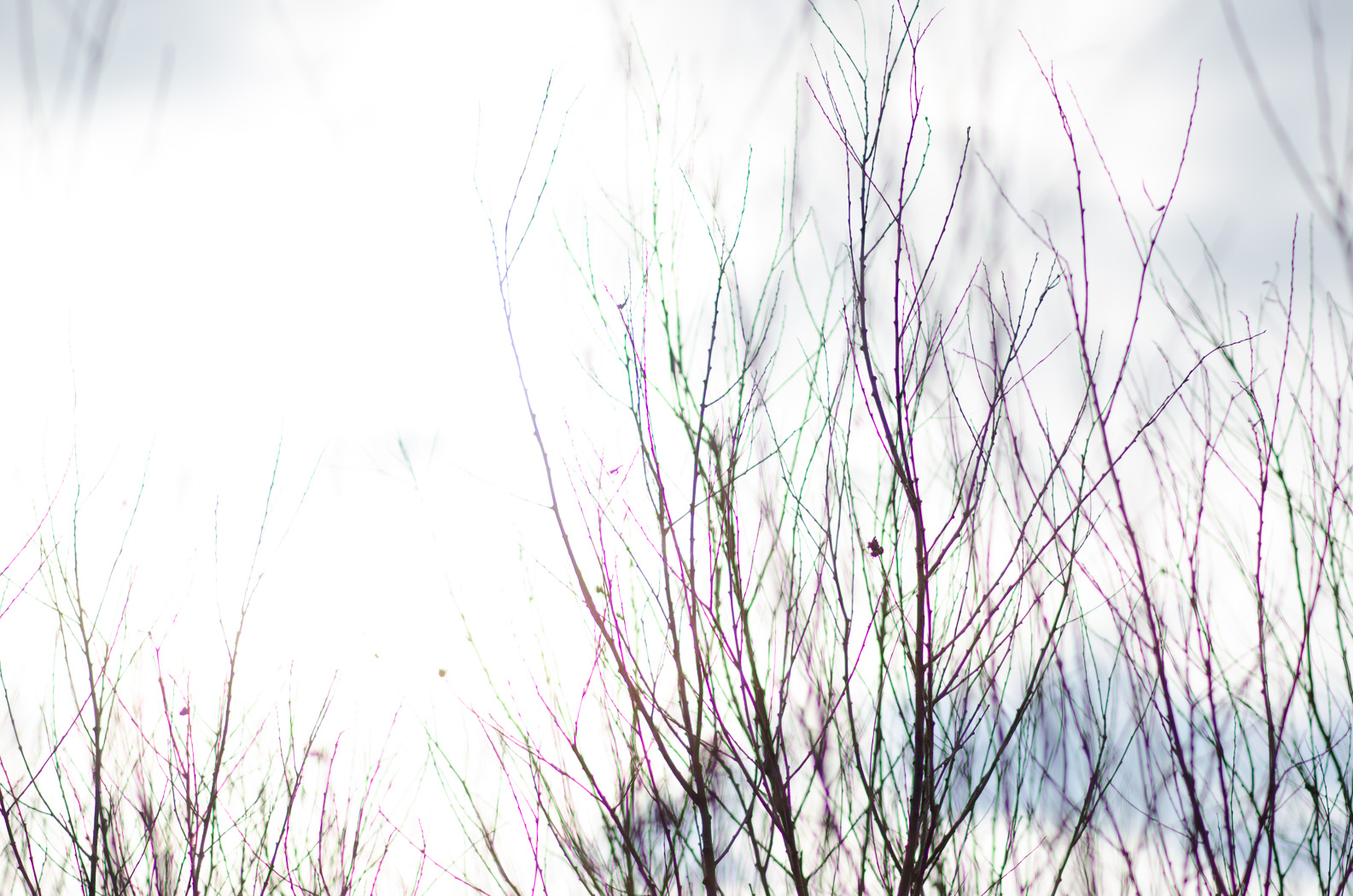
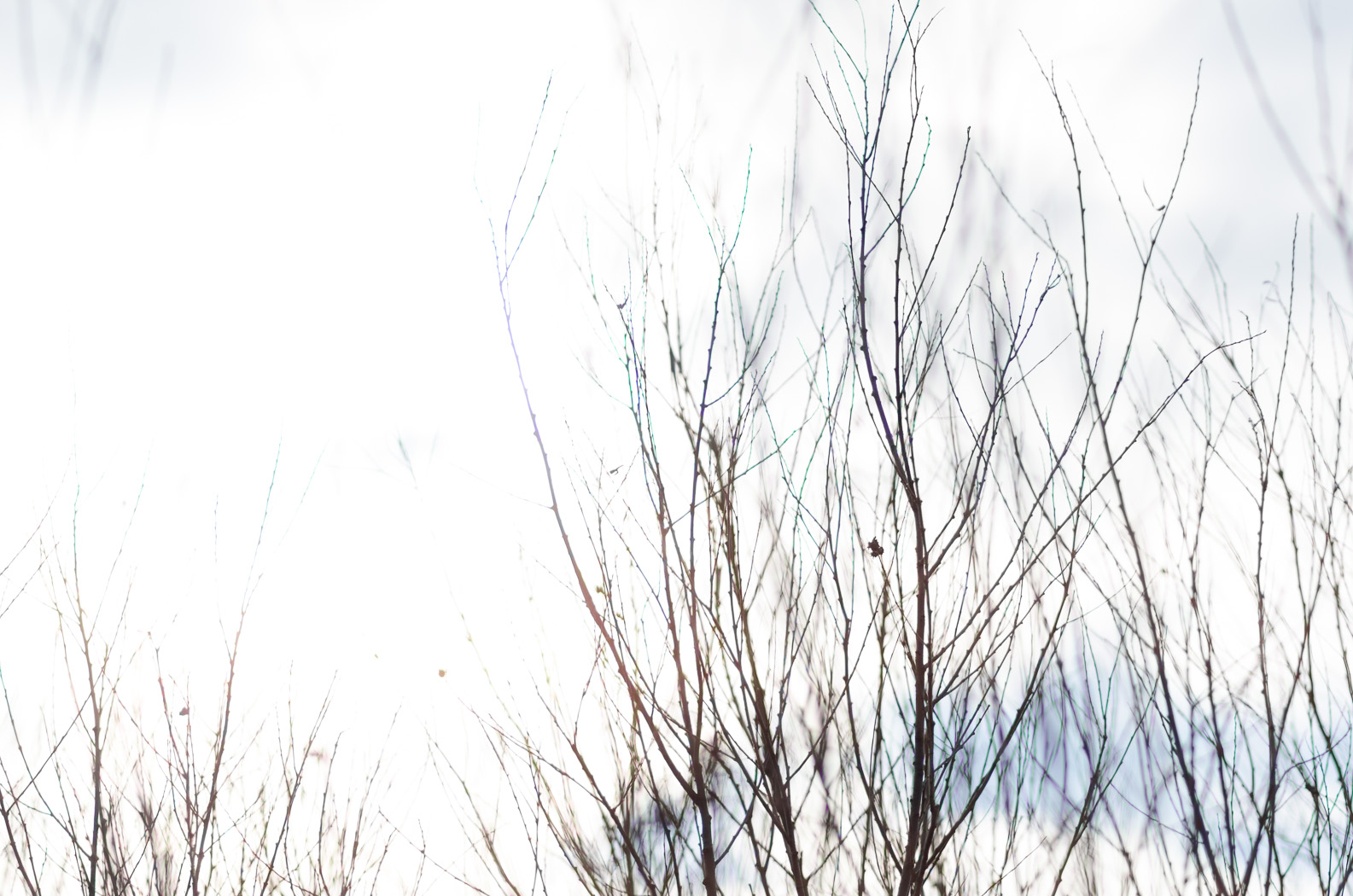
DSC_9257Fortunately image editing software, such as Lightroom 4, have a correction tool for both lateral and longitudinal chromatic aberrations. Here is a stress condition of an extremely backlit subject both before and after Lightroom 4’s lens corrections. While the tool doesn’t remove the purple and green fringes completely it makes for a much more natural looking image.

DSC_9028DSC_9028-2I’m sure I’ll have a lot more to say about the lens in the future, but for now I’ll post a few more photos from my first week with it.

DSC_9292 DSC_9243 DSC_9241 DSC_8986-Edit DSC_8911Thanks for reading!

Owen